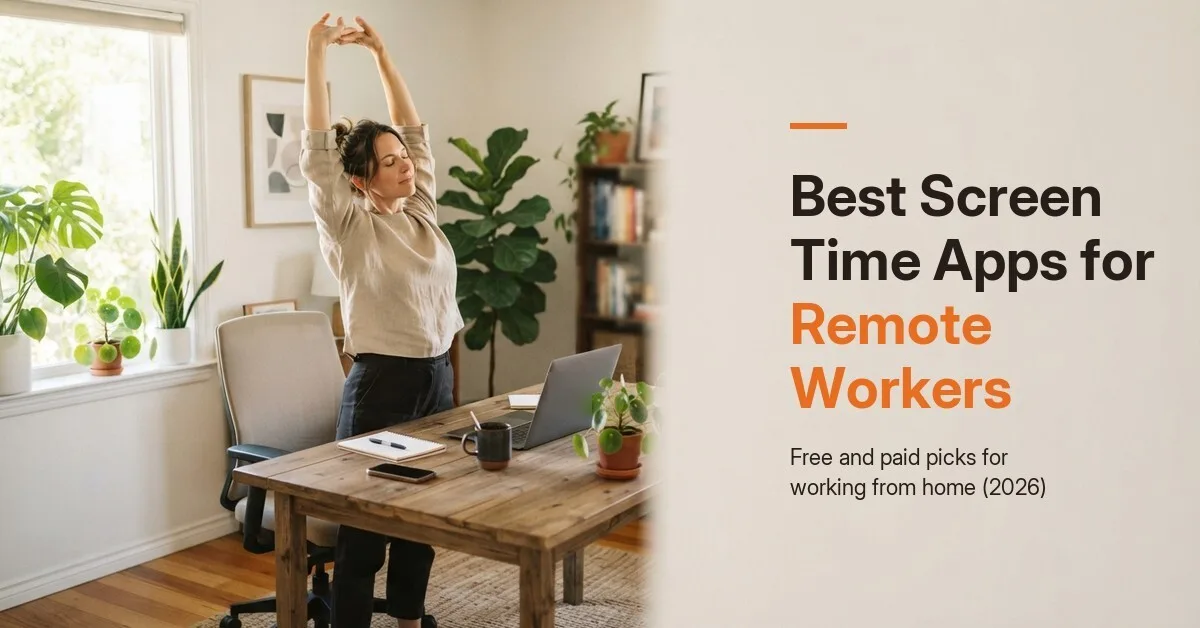
The best screen time apps for remote workers in the US (2026): picks for work hours, laptop focus, after-hours Slack and sitting all day, with free options.
Quick answer: The best screen time apps for remote workers depend on where your day leaks. Start free with Screen Time on iPhone or Digital Wellbeing on Android, plus a Work Focus that hides Slack and email after hours. Opal is best for scheduled focus blocks on your phone, AppBlock is the strongest pick on Android, and Freedom or Cold Turkey cover your laptop. ScreenZen and one sec are good free or low-cost ways to slow the reflex. If you sit all day and keep switching your own limits off, ScrollToll: Screen-Time Gym keeps apps locked until you do a few squats or push ups, so every break gets you moving.
This post is published by ScrollToll: Screen-Time Gym, one of the apps on this list. We've tried to be fair and say where other apps are the better choice.
Want to try the movement approach? Download ScrollToll: Screen-Time Gym on the App Store or Google Play. It starts with a 3-day trial, then it's paid.
Key takeaways
- Remote work has two screen problems: scrolling during work hours, and work apps following you into the evening. Most people need help with both.
- Your phone and your laptop need different tools: most phone blockers can't touch your browser, and most desktop blockers can't touch your phone.
- Start free: your phone's built-in tools, Focus modes and ScreenZen cost nothing.
- Go stricter if you cheat: if you keep undoing your own limits, pick an app that makes switching off slow or hard.
- Use breaks to move: remote workers sit a lot, so a break that gets you standing is worth more than one spent scrolling.
Why remote workers struggle with screen time
According to the U.S. Bureau of Labor Statistics, 22.1% of people at work in October 2026 teleworked or worked from home for pay, about 35 million people. Roughly half of them worked from home for all their hours.
Working from home removes the things that used to break up the day. There's no commute, no walk to a meeting room and no coworker who can see your screen. Your phone sits next to your keyboard all day, and the apps you use for work live on the same device as the apps you use to unwind.
That creates a loop most remote workers know well:
- During the day: you check your phone "for a second" between tasks, and 20 minutes disappear.
- In the evening: Slack and email are still on your phone, so work never quite ends.
- At night: the scrolling you held back all day comes out late. In our own app data, activity peaks between 9pm and 1am.
- All day long: you sit. The CDC recommends at least 150 minutes of moderate activity a week, plus 2 days of muscle-strengthening activity, and a day at a home desk makes that easy to miss.
The good news is that each part of the loop has a tool that fits it.
Comparison table: screen time apps for remote workers
| App | Best for remote workers who… | How it works | Free option | iPhone | Android | Price model |
|---|---|---|---|---|---|---|
| Screen Time / Digital Wellbeing + Focus modes | want a free first step | Built-in limits, reports and Focus schedules | Yes, built in | Yes | Yes | Free |
| Opal | want scheduled focus blocks on their phone | Blocks chosen apps on a schedule or for a session | Yes, limited | Yes | Yes | Free plan plus paid Pro |
| AppBlock | use Android | Schedules, profiles and a Strict Mode | Yes | Yes | Yes | Free plus Premium |
| Freedom | get distracted on their laptop too | Blocks apps and websites across devices at the same time | Trial | Yes | Yes | Subscription |
| Cold Turkey | do deep work on a computer | Blocks websites and apps on Windows and Mac | Yes, basic | No | No | One-time Pro upgrade |
| ScreenZen | want a free app that slows them down | Pause before an app opens, growing delays, open limits | Yes, fully free | Yes | Yes | Donations |
| one sec | reach for their phone on reflex | Breathing pause before a chosen app opens | Yes, for 1 app | Yes | Yes | Free plus Pro |
| ScrollToll: Screen-Time Gym | sit all day and keep undoing their limits | Apps stay locked until you earn time with exercise | No (3-day trial, then paid) | Yes | Yes | Subscription or lifetime |
Plans and features change often, so check each app's store listing before you pay. For a wider list that isn't specific to remote work, see our guide to the best app blockers.
The best pick for each remote work problem
1. You scroll on your phone during work hours: Opal or AppBlock
If your phone is the leak, schedule blocks for your working hours so social apps simply aren't available from 9 to 5.
- Opal is the most polished option for this. You set focus sessions or a recurring schedule, and the apps you choose stay blocked. It has a free plan with limited features and a paid Pro plan. Opal is also on Android, although the Android app is lighter than the iPhone version. If you're weighing it up, our page on apps like Opal compares the options.
- AppBlock is the strongest choice on Android. It has profiles (for example "Work" and "Evening"), schedules and a Strict Mode, and on Android it can block Reels and Shorts inside their apps.
Watch out for: a schedule only works if you don't switch it off. If you keep pausing your block "just this once", look at section 5.
2. Your distraction is on your laptop: Freedom or Cold Turkey
A phone blocker won't stop you opening YouTube in a browser tab. If most of your wasted time happens on your computer, you need a desktop tool.
- Freedom blocks websites and apps across your laptop, phone and tablet at the same time, so a focus session covers every device. It's the best fit if you switch between devices all day. Our Freedom alternatives page covers other options.
- Cold Turkey is computer only, on Windows and Mac. The basic version is free and a one-time upgrade unlocks stricter features. It's a good pick for deep work blocks where you want no way out.
Watch out for: neither tool helps much with the phone in your hand at 11pm. Many remote workers pair a desktop blocker with a phone app.
3. Work apps follow you into the evening: use Focus modes first
This one doesn't need a paid app. Both phones can hide work apps after hours.
- On iPhone: set up a Work Focus and a Personal Focus in Settings > Focus. Choose which apps can send notifications in each, set a schedule, and link a Home Screen page so Slack and email only show up during work hours.
- On Android: use Focus mode in Digital Wellbeing on a schedule to pause work apps in the evening. If your employer set up a work profile, you can usually pause all work apps at once with the "Work apps" switch in quick settings.
A clear end to the workday also makes it easier to keep evening scrolling in check. A simple time blocking template helps you plan where work stops.
4. You just want to know where the day went: start with reports
Before you block anything, look at the numbers. Screen Time on iPhone and Digital Wellbeing on Android show which apps take your time and how often you pick up your phone. On your computer, time trackers like RescueTime log time by app and website in the background.
Watch out for: tracking on its own rarely changes much. Use a week of data to decide what to block, then pick a tool from this list.
5. You sit all day and keep undoing your limits: ScrollToll: Screen-Time Gym
This is the gap most remote work guides miss. Blocking apps solves half the problem, but you're still sitting at the same desk for eight hours, and when the urge hits you just turn the limit off.
ScrollToll locks the apps you choose, such as Instagram, TikTok, YouTube or Snapchat, until you earn time with exercise. Your phone's camera counts your reps on the device, and nothing is recorded or uploaded. Each rep earns 1 minute by default, and you can change that. You can bank up to 2 hours a day.
For a remote worker, that turns every "quick scroll" into a short movement break:
- Mid-morning: 15 squats before you check Instagram.
- After a long call: a set of push ups or jumping jacks before YouTube.
- When you can't move: memory tiles let you earn time quietly, for example in a shared space.
There are 9 ways to earn: push ups, diamond push ups, squats, jumping jacks, lunges, crunches, overhead reach, walking (5 minutes per 100 steps) and memory tiles. Strict Mode makes it hard to cheat. Removing an app from your block list takes verified reps, a cool-down timer or a trusted friend's approval, and any change that loosens your rules waits 24 hours.
Watch out for: ScrollToll blocks apps, not websites, and it works on your phone, not your laptop. If your distraction lives in a browser, pair it with Freedom or Cold Turkey. It's also not free: it starts with a 3-day trial, then it's paid, with discounted student plans available. If you just want a free nudge, ScreenZen or one sec may suit you better. Read more about how an app that blocks social media until you exercise works.
6. You want something free that slows you down: ScreenZen or one sec
- ScreenZen is fully free and runs on donations. It adds a pause before a distracting app opens, the delay grows the more you open it, and you can set daily open limits. It's a good fit if you want friction without paying.
- one sec adds a short breathing pause before a chosen app opens. A 2023 study in PNAS by researchers at Heidelberg University and the Max Planck Institute found that people opened the target apps 57% less often after six weeks. It's free for one app, with a paid Pro plan.
Watch out for: both apps let you continue after the pause, which is the point. If you always tap through, you'll need something stricter.
A simple setup that works for most remote workers
You don't need five apps. Most people do well with three layers:
- Work hours: a scheduled block on social apps (Opal, AppBlock or ScrollToll), plus Freedom or Cold Turkey if you work on a laptop.
- After hours: a Personal Focus or Digital Wellbeing schedule that hides Slack and email.
- Breaks: a rule that every break starts with movement, whether that's a walk round the block, a glass of water or a set of squats.
Keep your phone off your desk when you can. Even a different room makes a difference, because the easiest phone check is the one within reach.
For more ideas that aren't app-specific, read our guide on how to focus.
How to choose the right screen time app for remote work
| If this sounds like you | Try this |
|---|---|
| "I lose time on my phone between tasks" | Opal (iPhone) or AppBlock (Android) |
| "Most of my distraction is in my browser" | Freedom or Cold Turkey |
| "Slack pings me all evening" | Focus modes or Digital Wellbeing, no extra app |
| "I want to spend nothing" | Built-in tools plus ScreenZen |
| "I open apps on autopilot" | one sec or ScreenZen |
| "I switch off every limit I set" | ScrollToll: Screen-Time Gym or AppBlock's Strict Mode |
| "I sit all day and barely move" | ScrollToll: Screen-Time Gym |
A few things to check before you install anything:
- Platform: does it work on your phone and, if you need it, your computer?
- How easy it is to switch off: look for a strict mode, a cool-down or a trusted person who has to approve changes.
- Calls and messages: make sure you can still get calls and work messages during a block.
- Permissions: blockers need Screen Time or accessibility access to work. Read what each app does with that access.
Download it on the App Store or Google Play.
Frequently Asked Questions
What is the best screen time app for remote workers?
It depends on where you lose time. Opal is best for scheduled focus blocks on your phone, AppBlock is best on Android, and Freedom is best if you also get distracted on your laptop. If you keep turning off your own limits and sit all day, ScrollToll: Screen-Time Gym makes you earn screen time with a few squats or push ups.
Are there free screen time apps for working from home?
Yes. Screen Time on iPhone and Digital Wellbeing on Android are built in and free. ScreenZen is fully free, one sec is free for one app, and Opal, AppBlock and Cold Turkey have free versions with fewer features.
How do I stop checking my phone while working from home?
Keep the phone off your desk, schedule a block on social apps during work hours, and turn off notifications from apps that aren't urgent. If you keep switching the block off, use an app with a strict mode or one that makes you do something before apps unlock.
How do I stop Slack and work email from following me after hours?
On iPhone, set up a Work Focus and a Personal Focus with schedules and choose which apps can notify you in each. On Android, schedule Focus mode in Digital Wellbeing, or pause your work profile if your employer set one up. You don't need a paid app for this.
Can a phone app block websites on my laptop?
Usually not. Most phone blockers only work on your phone. Freedom can block across your phone and laptop at the same time, and Cold Turkey blocks websites and apps on Windows and Mac. ScrollToll blocks apps on your phone, not websites.
Will an app blocker stop my calls and work messages?
Not unless you choose to block them. Most blockers let you pick exactly which apps to lock, so you can block Instagram and TikTok while keeping calls, Slack, Teams and email open during work hours.
Is Opal free?
Opal has a free plan with limited features and a paid Pro plan. It is available on iPhone and Android, although the Android app is lighter.
Is ScrollToll free?
No. ScrollToll: Screen-Time Gym starts with a 3-day trial, then it's paid. Prices vary by country, and discounted student plans are available through the app's live chat.
Does exercising to unlock apps actually help remote workers?
It helps in two ways. It adds friction, so you open apps less on autopilot, and it turns breaks into short bursts of movement, which matters when you sit at a desk all day. It won't replace a full workout, but a few sets of squats a day add up.
Ready to break the loop?
Download ScrollToll and start earning your screen time through real movement.