Screen Time limits don't work if you can tap Ignore Limit. Why it happens, how to lock limits on iPhone with iOS 27, and what to use when that isn't enough.
Quick answer: Screen Time limits fail because "Ignore Limit" is one tap away at the exact moment you most want to keep scrolling. To make a limit stick on iPhone, turn on Block at End of Limit, set a Screen Time passcode, and let someone else choose that passcode so you can't type it yourself. If you set limits for yourself and keep getting around them, use an app that makes unlocking cost real effort. ScrollToll: Screen-Time Gym locks your apps until you earn time with squats, pushups or a walk, and its Strict Mode makes any change that loosens your rules wait 24 hours.
Here's how each fix compares:
| Fix | Stops Ignore Limit? | How easy to undo |
|---|---|---|
| A time limit on its own | No | One tap on Ignore Limit |
| Block at End of Limit, without a passcode | No | You can still tap through |
| Screen Time passcode you know | Partly | You type the code you set |
| Passcode chosen by someone else | Yes | You have to ask them |
| Deleting the app | Partly | Reinstall in a minute |
| App blocker with a pause (like one sec) | Partly | Wait out the pause |
| Exercise to unlock (ScrollToll) with Strict Mode | Yes | Do the reps, or wait 24 hours to change a rule |
Why you keep tapping Ignore Limit
You set a limit when you're calm and planning. You hit it when you're tired, bored or mid-scroll. That's the worst possible moment to make a good decision, and Screen Time asks you to make it with one tap.
Three things make Ignore Limit so easy to press:
- It costs nothing: one tap, and the app opens again. Nothing makes you stop and think.
- The options feel small: "One More Minute" and "Remind Me in 15 Minutes" sound harmless, but they add up night after night.
- You're both the rule-maker and the rule-breaker: if you know the passcode, the limit is a suggestion.
Friction is what changes this. In a 2023 study published in PNAS, adding a short delay before a social app opened led people to open it 57% less often after six weeks. The harder a limit is to skip, the more often it works.
How to make Screen Time limits stick on iPhone (iOS 27)
In iOS 27, Apple renamed App Limits to Time Allowances, and Downtime to Screen Time Schedule. The fixes below work the same way.
- Set a Time Allowance: go to Settings > Screen Time > Time Allowances and add a limit for a category, or create a custom one with just the apps you want, like Instagram and TikTok.
- Turn on Block at End of Limit: in the same allowance, switch on Block at End of Limit. On its own this doesn't remove Ignore Limit, so do step 3 too.
- Set a Screen Time passcode: in Settings > Screen Time, choose Lock Screen Time Settings and set a 4-digit code. Now, when your limit runs out, opening the app asks for that code instead of offering a free pass.
- Let someone else choose the code: this is the step that makes it work. Ask a partner, friend or roommate to type in a code you don't see. If you need more time, you have to ask them.
- Add a Screen Time Schedule: for late nights, set a schedule (for example, 11 PM to 7 AM) so only the apps you allow work during those hours.
Good to know: if you forget the passcode, you can reset it with your Apple Account, so this doesn't lock you out of your phone for good. It only stops you from skipping limits on impulse.
Menu names change between iOS versions. If you don't see an option, search for it in the Settings app.
What about Android?
Android's Digital Wellbeing app timers don't have an Ignore Limit button: when the timer runs out, the app icon turns grey until midnight. The catch is that you can switch the timer off in a few taps, and nothing stops you. Android doesn't offer a separate passcode for your own timers, so the "someone else holds the code" trick doesn't work the same way. That's where an app blocker helps.
For step-by-step setup on both phones, see our guide on how to lock apps on iPhone and Android.
When built-in limits aren't enough
If you set your own limits and keep finding ways around them, you're not lacking willpower. The tool simply makes skipping easier than stopping. App blockers fix that in different ways:
| Type of app blocker | How it stops you | Where it falls short |
|---|---|---|
| Pause apps (one sec, ScreenZen) | A breathing pause or a question before the app opens | You can wait it out |
| Schedule blockers (Opal, Freedom) | Blocks apps during set hours | Breaks and emergencies tempt you to switch it off |
| Exercise to unlock (ScrollToll) | You earn minutes with squats, pushups or a walk | You have to actually move, which is the point |
For a full side-by-side, read our comparison of the best app blockers.
How ScrollToll: Screen-Time Gym replaces Ignore Limit
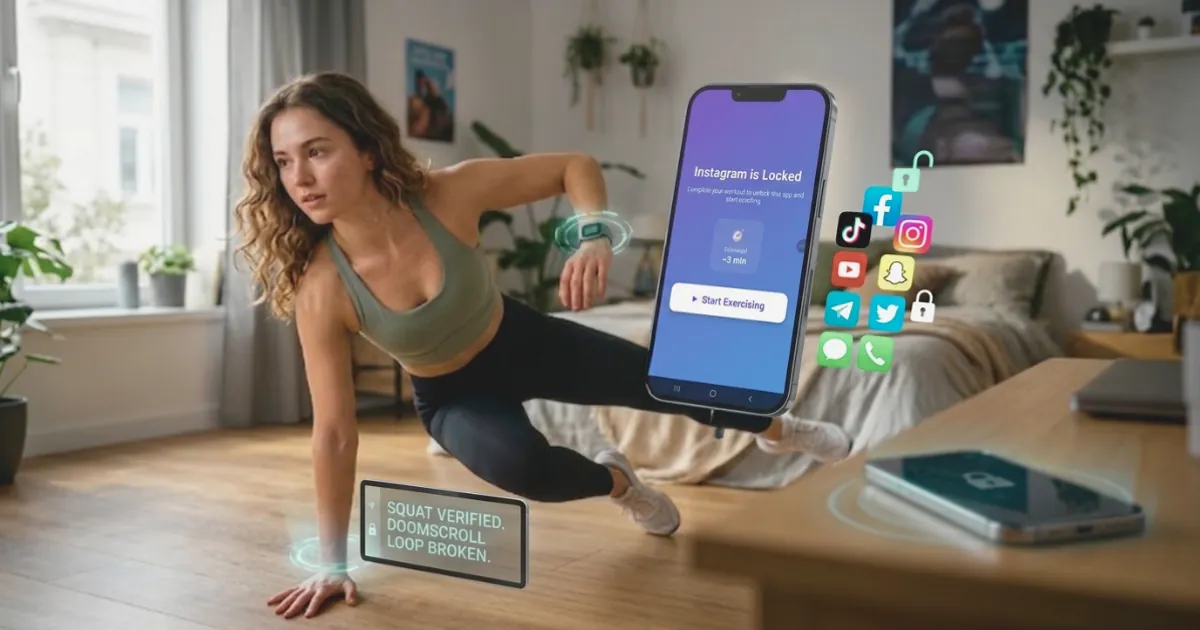
ScrollToll: Screen-Time Gym works on the moment Ignore Limit fails. When you hit your limit, there's no free tap. To get more time, you earn it:
- Do reps: squats, pushups, jumping jacks, lunges and more, counted by your phone's camera on the device. Nothing is recorded.
- Or walk: steps count toward your time too.
- Choose your exercises: pick the ones you can do and remove the ones you can't.
Then there's Strict Mode, the answer to "I'll just change the settings". To remove an app from your block list, you need verified reps, a cooldown timer or a trusted person's approval. And any change that makes your rules easier waits 24 hours, so a bad night can't undo your plan.
It also changes the habit itself. After a few days, many people find that the urge passes before they finish ten squats. Read more about how an app blocker that needs exercise to unlock works.
Want to see how much time those "one more minute" taps really add up to? Try the ScrollToll screen time calculator.
Make your limits stick: Download ScrollToll: Screen-Time Gym on the App Store for iPhone or Google Play for Android, and start with a 3-day trial.
Frequently Asked Questions
How do I stop myself from tapping Ignore Limit?
Turn on Block at End of Limit in your Time Allowance, set a Screen Time passcode, and have someone else choose that passcode so you can't type it yourself. If you set limits only for yourself, an app that makes unlocking cost effort, like ScrollToll: Screen-Time Gym, works better than a button you can tap.
Can you remove the Ignore Limit option on iPhone?
Yes, by setting a Screen Time passcode and turning on Block at End of Limit. When the limit runs out, the app asks for the passcode instead of showing a free Ignore Limit option. If you know the passcode yourself, you can still type it, so the limit is only as strong as your willpower in that moment.
Why don't Screen Time limits work for me?
Because skipping them takes one tap, at the moment you most want to keep scrolling. Limits set by you and skipped by you rarely hold. They work better when someone else holds the passcode or when unlocking takes real effort.
What is Block at End of Limit on iPhone?
It is a setting in each Time Allowance that blocks the app once your time runs out. It only fully works together with a Screen Time passcode. Without one, you can still tap past it.
Did iOS 27 change App Limits?
Yes. In iOS 27, App Limits are called Time Allowances and Downtime is called Screen Time Schedule. They work the same way, and the passcode and Block at End of Limit settings still apply.
Does Android have an Ignore Limit button?
No. Android's Digital Wellbeing app timers grey out the app until midnight, but you can switch a timer off in a few taps. There is no separate passcode for your own timers, so an app blocker is the stronger option on Android.
What should I do if I set my own Screen Time passcode and keep typing it?
Reset it and let someone you trust choose the new one, or use an app that makes you earn screen time. ScrollToll: Screen-Time Gym locks apps until you do a set of squats, pushups or a walk, and its Strict Mode makes any change that loosens your rules wait 24 hours.
Is there an app blocker you can't easily get around?
Apps with a strict mode are the hardest to bypass. ScrollToll: Screen-Time Gym needs verified reps, a cooldown timer or a trusted person's approval to remove a blocked app, and any change that eases your rules takes 24 hours to apply. It is available on iPhone and Android with a 3-day trial.
Ready to break the loop?
Download ScrollToll and start earning your screen time through real movement.