How to block apps on iPhone and Android using Screen Time, Digital Wellbeing, and third-party app blockers. Includes how to block app downloads and which methods can actually be bypassed.
Every phone ships with a screen time tool. Almost nobody finds it enough. Here is how to actually lock apps on iPhone and Android, what the built-in options get right and where they fall short, and how a different kind of app blocker gets better results for both teenagers and adults.
To block apps on iPhone, open Settings, tap Screen Time, then App Limits, and set a daily limit for the app or category you want restricted. To block apps on Android, open Settings, tap Digital Wellbeing and Parental Controls, tap Dashboard, then set a timer on the app. Both methods are free and built in. Both can also be switched off by the person using the phone, which is why third-party app blockers like ScrollToll exist: they add a barrier that is harder to remove in the moment.
| Method | Platform | Cost | How hard to bypass |
|---|---|---|---|
| Screen Time | iPhone, iPad | Free | Easy, one tap to ignore the limit |
| Digital Wellbeing | Android | Free | Easy, can be disabled in Settings |
| Family Link | Android, some iOS | Free | Moderate, needs the parent account |
| Third-party blockers | Both | Free to paid | Moderate to hard, varies by tool |
| ScrollToll | Both | Paid, student discount | Hard, unlock requires verified exercise |
Why people want to lock their apps in the first place
The average person checks their phone over a hundred times a day. Most of those checks are not decisions. They are reflexes — a gap in conversation, a moment of boredom, a habit so deeply grooved it happens before any conscious thought kicks in. The app opens. The scroll begins. Five minutes later you surface and wonder where the time went.
This is not a personal failing. It is the intended outcome of platforms engineered specifically to make putting the phone down feel harder than picking it up. Infinite scroll, variable reward notifications, and algorithmically curated feeds are not accidents of design. They are features built to keep you there as long as possible.
Locking apps is the practical response: create a barrier between impulse and action so that opening Instagram or TikTok becomes a choice rather than a reflex. The question is which barrier actually works.
- For parents: Looking to manage your child’s screen time without a constant battle? This guide covers every option across iPhone and Android, including what teenagers can actually bypass and what they cannot.
- For individuals: Trying to cut your own scrolling and build better habits? We cover the tools that work with your psychology rather than against it, including one that turns every unlock into a workout.
How to lock apps on iPhone using Screen Time
Apple’s Screen Time is the most accessible starting point for iPhone users. It is built into every device running iOS 12 and above and requires no third-party download.
- Open Settings and tap Screen Time. If you have not set it up before, tap Turn On Screen Time and follow the prompts.
- Tap App Limits and then Add Limit. You can restrict by category (Social Networking, Entertainment) or by individual app.
- Set the daily time allowance. Once the limit is reached, the app icon dims and a timer icon appears. Tapping it shows a countdown.
- Set a Screen Time passcode by going back to the Screen Time menu and tapping Use Screen Time Passcode. This prevents the limit from being turned off without the code. If you are a parent, use a passcode your child does not know.
- For stricter control, use Downtime to block all apps except the ones you specifically allow during set hours, and Communication Limits to restrict who the device can contact.
Screen Time is straightforward to set up and works reasonably well for younger children. For teenagers, however, its limitations become apparent quickly.
Where Screen Time falls short
- Apps accessed through Safari or iMessage links are not always covered by app-specific limits.
- Deleting and reinstalling an app can reset its timer on some iOS versions.
- Changing the device time zone is a well-known workaround teenagers share online.
- The passcode can sometimes be reset via Apple ID if a child knows the account credentials.
- Once the limit is reached, a single tap on “Ignore Limit” buys a one-minute extension with no friction at all.
Can you block apps from being downloaded on iPhone?
Yes, and this is separate from limiting usage. Limiting an app does nothing if a new copy can be installed a minute later.
Go to Settings, then Screen Time, then Content and Privacy Restrictions, turn the toggle on, then tap iTunes and App Store Purchases. Set Installing Apps to Don’t Allow to stop new downloads, and set Deleting Apps to Don’t Allow so an existing app cannot be removed and reinstalled to reset its timer.
While you are in that menu, set Account Changes and Passcode Changes to Don’t Allow. Those two close the most common workarounds.
How to restrict apps on Android using Digital Wellbeing
Android’s equivalent is Digital Wellbeing, available on most devices running Android 9 and above. The path varies slightly by manufacturer but follows the same structure.
- Open Settings and tap Digital Wellbeing and Parental Controls. On Samsung devices this may appear as Digital Wellbeing or Wellbeing.
- Tap Dashboard. This shows your usage breakdown by app for the current day.
- Tap any app and select Set Timer. Choose the daily limit you want, then tap OK.
- Once the timer runs out, the app icon is greyed out and cannot be opened until midnight resets the counter.
- For parental controls, tap Parental Controls in the Digital Wellbeing menu. This opens Google Family Link, which lets a parent account approve or block specific apps and set screen time schedules remotely.
Digital Wellbeing is more consistent than Screen Time in one respect: the greyed-out app icon is harder to work around than iPhone’s “Ignore Limit” button. But the underlying problem is the same. The entire system relies on the user choosing not to disable it.
Where Digital Wellbeing falls short
- On most Android devices, Digital Wellbeing can be turned off entirely in Settings with no passcode required by default.
- Factory resetting the device removes all limits.
- Accessing content through a browser bypasses app-specific timers entirely.
- Google Family Link requires the child’s cooperation to set up and can be removed if the child has access to the device’s Google account.
- No positive reinforcement: the tool only restricts, it never builds a habit.
Blocking app downloads on Android
Open the Play Store, tap your profile icon, then Settings, Family, Parental controls. Turn parental controls on, set a PIN, and restrict app downloads by content rating. Family Link gives finer control, letting you approve or deny each install request individually.
If the specific app is the problem rather than screen time generally, these walkthroughs go deeper: how to block TikTok, how to block YouTube Shorts, and how to block Snapchat.
Third-party app blockers compared
If the built-in tools are not holding, a dedicated blocker adds enforcement the operating system does not.
| Blocker | Platform | Free tier | Approach |
|---|---|---|---|
| Opal | iOS | Limited | Scheduling and focus scores, built on Screen Time API |
| Freedom | iOS, Android, desktop | Trial only | Cross-device sessions, blocks sites and apps together |
| one sec | iOS, Android | Limited | Breathing pause before the app opens |
| ScrollToll | iOS, Android | No, student discount available | Apps unlock after AI-verified physical exercise |
Opal is the best known and the design is genuinely good, though it inherits the Screen Time API’s weaknesses. If you are weighing it up, we compared it directly in our Opal alternatives breakdown. Freedom is the strongest option if your scrolling moves between phone and laptop. one sec suits people who respond to a gentle pause rather than a hard stop.
The problem both tools share
Screen Time and Digital Wellbeing are well-intentioned and worth using as a starting point. But they share a fundamental design flaw: they are passive. They wait for a timer to expire and then put up a soft barrier. There is no cost to overriding them beyond a tap or two. For a teenager who really wants to open TikTok, that is not a barrier. It is a speed bump.
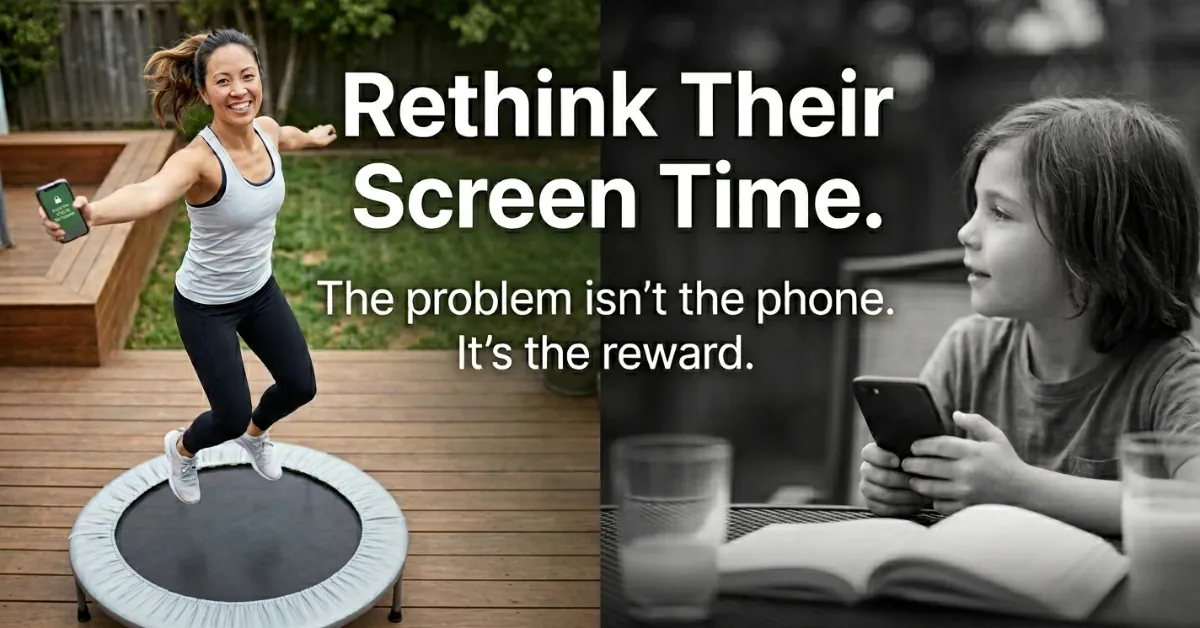
What actually changes behaviour is not removing access. It is removing frictionless access. The difference sounds subtle but it produces entirely different outcomes. A hard lock creates resentment and workarounds. A friction point creates a pause, and a pause creates a choice.
| Feature | iPhone Screen Time | Android Digital Wellbeing | ScrollToll |
|---|---|---|---|
| Blocks specific apps | Yes | Yes | Yes |
| Requires action to unlock | Passcode only | None | Physical exercise, AI-verified |
| Teenager can bypass easily | Several known workarounds | Can be disabled in Settings | Cannot fake a push-up to an AI |
| Builds long-term habit | No | No | Yes — repetition creates a pause reflex |
| Works on iOS and Android | iOS only | Android only | Both |
| Price | Free | Free | Paid, student discount available |
How built-in screen time tools compare to ScrollToll
A different kind of app blocker: ScrollToll
ScrollToll takes a different approach to the problem. Rather than setting a timer and waiting for it to expire, it changes what unlocking an app actually costs.
You choose which apps to block. You choose which exercise unlocks them: push-ups, squats, jumping jacks, overhead reaches, or a walk counted by your step counter. When you try to open a blocked app, ScrollToll prompts you to complete a set of reps first. The app uses your phone’s camera and AI pose detection to watch your form, count your reps, and verify your movement in real time. Completing the exercise earns you minutes of screen time, up to 120 minutes banked per day, at an earn rate you control.
- ★Block individual apps or entire categories, fully customisable.
- ★AI pose detection that verifies push-ups, squats, jumping jacks, and overhead reaches in real time with a live skeleton overlay and instant form feedback.
- ★Step counter mode for walking, no camera required.
- ★Memory tile challenges for days when physical exercise is not possible.
- ★Adjustable earn rates so you control the exchange: more reps, more minutes.
- ★Up to 120 minutes banked per day across all unlocked apps.
- ★Available on iOS and Android, no wearable needed, with a student discount available.
The reason this works where passive timers do not comes down to what it asks of the user. A timer asks nothing. It just counts down and then offers an easy override. ScrollToll asks for something physical, something that takes real effort, something an AI is actively watching you do. That changes the nature of the decision entirely.
For parents: a better conversation than a ban
If you are a parent trying to manage your child’s screen time, the instinct to restrict access is understandable. The research on heavy social media use and teenage wellbeing is serious and well-documented. But a hard ban — whether through Screen Time, Digital Wellbeing, or even proposed legislation — tends to produce the same outcome: the teenager finds a workaround, and you lose visibility of what they are actually doing online.
ScrollToll offers a different framing. Rather than taking something away, it introduces an exchange: screen time is earned through movement. This is a conversation most teenagers find considerably more acceptable than a blanket block, because it respects their autonomy while still creating a real barrier to mindless use.
For families, the earn rate can be set conservatively so that significant exercise is required for meaningful screen time. For teenagers who are active anyway, it becomes a natural part of their routine. And because the AI verifies every rep, there is no arguing about whether the work was done. The phone is either unlocked or it is not.
For individuals: building a habit, not just a rule
If you are managing your own screen time rather than a child’s, the challenge is different. You already know the timer is there. You already know the override button exists. And at 11pm when you are tired and just want to scroll for a bit, willpower is in short supply.
What ScrollToll does is shift the terms of that late-night negotiation. Instead of “should I open Instagram?” the question becomes “do I want to do ten push-ups right now?” That is a completely different calculation. And more often than not, the answer is no, which means you put the phone down and do something else.
Over time, something more durable develops. Each time you complete the exercise before opening an app, you are practising the pause: creating a moment of intention between impulse and action. That reflex, once built, changes your relationship with your phone in a way that a passive timer never could.
If you want a structured way to bring your daily usage down rather than just locking apps outright, our 30-day plan to reduce screen time from 5 hours to 2 walks through exactly where a hard lock like this fits into a longer reduction schedule.
Frequently Asked Questions
How do I lock apps on iPhone?
On iPhone, go to Settings, then Screen Time, then App Limits. Select the app or category you want to restrict and set a daily time limit. Add a Screen Time passcode so the limit cannot be removed without it. For a stronger barrier, ScrollToll requires physical exercise to unlock any blocked app, making it significantly harder to bypass than a passcode.
How do I block apps on Android?
On Android, open Settings and go to Digital Wellbeing and Parental Controls. Tap Dashboard, find the app you want to limit, and set a daily timer. Once the limit is reached the app icon is greyed out. Like iPhone Screen Time, this relies on willpower and is easy to override. Third-party apps like ScrollToll offer a more effective alternative by requiring completed exercise before a blocked app can be opened.
What is the best screen time app for teenagers?
The most effective screen time apps do more than set timers — they change the relationship between the user and their phone. ScrollToll requires physical exercise to unlock blocked apps, verified by AI in real time, making it significantly harder to bypass than built-in tools. It works on both iOS and Android, is a paid app with a student discount available, and builds a lasting habit rather than just enforcing a rule.
Can kids bypass Screen Time on iPhone?
Yes. There are several well-documented workarounds including deleting and reinstalling apps, changing the device time zone, accessing content through Safari or iMessage links, and guessing or social-engineering the Screen Time passcode. ScrollToll is harder to circumvent because it requires verified physical exercise — AI watches your movement in real time, so the barrier cannot be skipped.
How does ScrollToll work as an app blocker?
ScrollToll lets you choose which apps to block and which exercise unlocks them. When you try to open a blocked app, you are prompted to complete a set of reps first. The app uses your phone camera and AI pose detection to count your reps and verify your form in real time. Each completed exercise earns minutes of screen time, up to 120 minutes banked per day, at an earn rate you set yourself.
Is ScrollToll free?
ScrollToll is a paid app, with a regular discount offer for students. It is available on the App Store and Google Play and requires no wearable device.
Ready to break the loop?
Download ScrollToll and start earning your screen time through real movement.