Learn how to block YouTube and YouTube Shorts on any device with ScrollToll. Set parental blocks, kill distractions, and reclaim your focus in minutes.
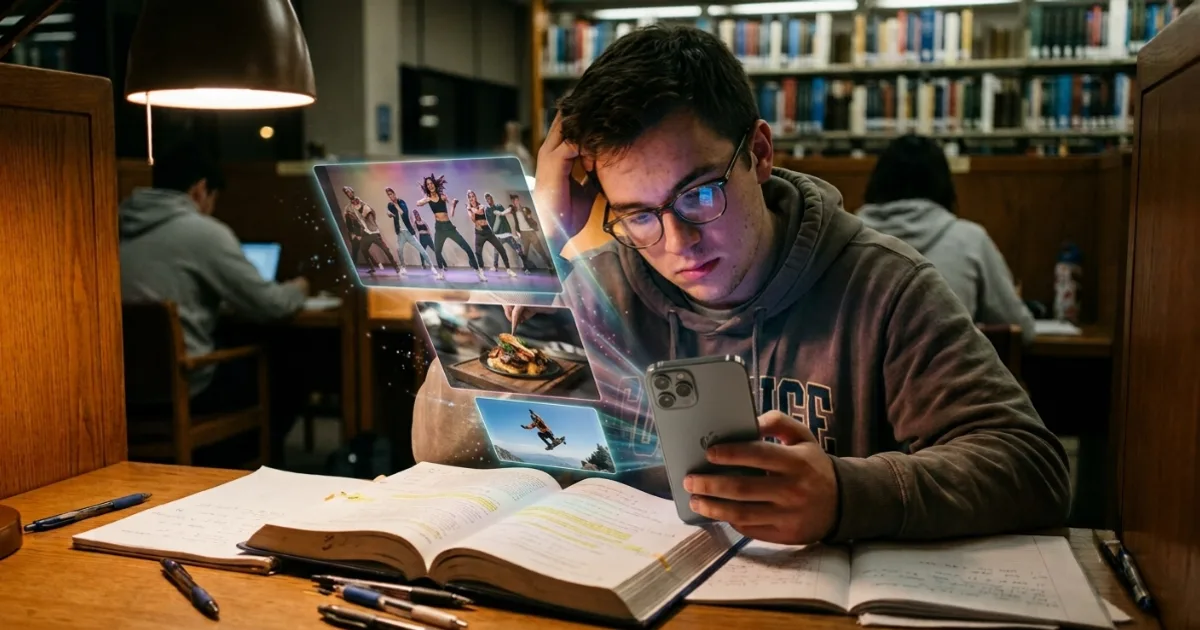
Let’s be honest. You opened YouTube to watch one video, and forty minutes later you’re deep into a rabbit hole about medieval sword-making or why cats knock things off tables. Sound familiar?
You’re not alone. YouTube is engineered to keep you watching, and it’s really, really good at its job. The autoplay, the endless recommendations, the Shorts that never stop — it all adds up to hours of your day quietly disappearing.
The good news? You can take that time back. In this guide, we’ll walk you through exactly how to block YouTube on your iPhone, iPad, and Android device using ScrollToll, plus a few bonus tips to help you stay focused once it’s gone.
Why YouTube Is Such a Massive Distraction
Before we get into the “how,” it helps to understand the “why.”
YouTube isn’t just a video site. It’s a recommendation machine designed to predict what will keep your eyes glued to the screen. Every time you finish a video, the next one is already queued up, perfectly tailored to your interests. That’s not an accident. It’s the whole business model.
Then there are YouTube Shorts, which took everything addictive about the platform and made it faster. One swipe becomes ten becomes fifty, and suddenly you’ve lost half an hour to clips you won’t even remember tomorrow.
This constant stream doesn’t just eat your time. It fragments your attention, makes deep focus harder, and often leaves you feeling more drained than relaxed. Late-night scrolling also messes with your sleep, thanks to blue light and the dopamine loop that keeps your brain wired long after you should be resting.
How to Block YouTube Using ScrollToll
Unlike browser extensions or website filters, ScrollToll is a mobile app that blocks apps already installed on your phone. That means it doesn’t just block the YouTube website — it blocks the actual YouTube app, YouTube Shorts, and any other distracting app you choose, right at the source.
No workarounds, no sneaking back in through a different browser. When you decide to block YouTube, it stays blocked.
- Download ScrollToll from the App Store or Google Play.
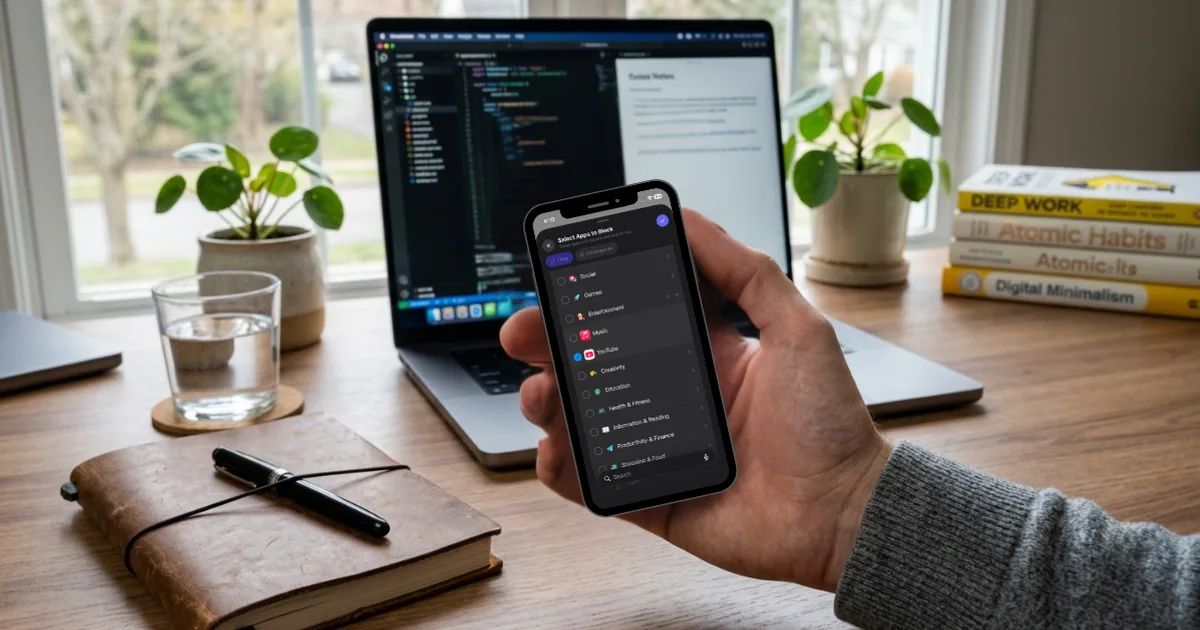
- Open the app and head to your block list.
- Select YouTube (and YouTube Shorts) from your installed apps.
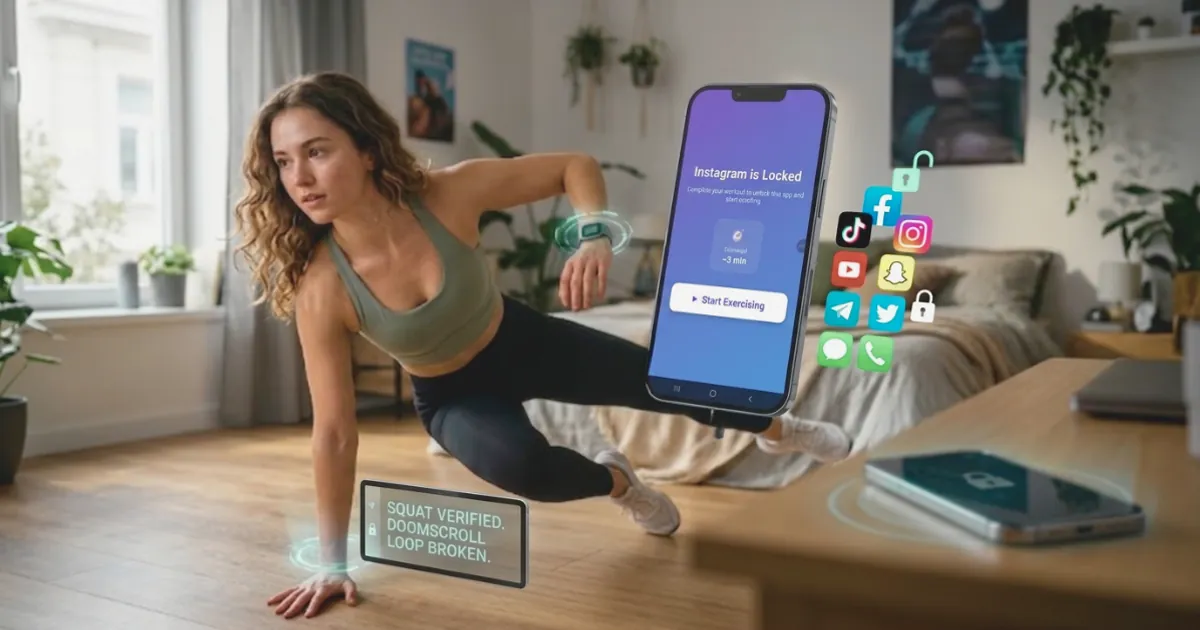
- Set your unlock exercise. Once an app is on the blocked list, opening it prompts you to complete a set of AI-verified reps first — pushups, squats, or a walk.
- Done. YouTube now costs you real movement to open, so the mindless tap stops being mindless.
Whether you want to block YouTube during work hours, study time, or just before bed, ScrollToll handles it in the background so you don’t have to rely on self-control alone.
Want to block more than just YouTube? You can add social media apps, games, or anything else that pulls your attention. ScrollToll works across your whole phone, not just one app.
How to Block YouTube on iPad
iPads are notorious for turning into YouTube machines, especially in family households. The bigger screen makes binge-watching even easier, which is exactly why so many people search for how to block YouTube on iPad specifically.
With ScrollToll installed on your iPad, the process is identical to your phone. Open the app, select YouTube from your installed apps, and set your block. Because ScrollToll blocks the app at the device level, it works whether your kids (or you) try to open YouTube through the app or a browser tab.
This makes it a genuinely reliable option for tablets that double as both work tools and entertainment hubs.
How to Block YouTube Shorts Without Blocking Everything
This is a common frustration: you don’t necessarily want to nuke all of YouTube. Maybe you use it for tutorials, workout videos, or background music. It’s really the Shorts that suck you in.
The bad news is that YouTube doesn’t give you a clean, built-in way to turn Shorts off permanently. The good news is that with ScrollToll you can block the YouTube app entirely during your most vulnerable hours — late at night or during work — so Shorts simply aren’t an option when you’re most likely to spiral. For the full walkthrough, including YouTube’s own zero-minute Shorts limit, see our guide on how to stop YouTube Shorts addiction.
For a lot of people, blocking around their weak moments is far more effective than trying to resist the swipe in real time.
How to Put a Parental Block on YouTube
If you’re a parent, you already know that “just a few videos” rarely stays that way. Setting up a parental block on YouTube is one of the best ways to protect your kids’ screen time and keep them away from an endless content feed.
ScrollToll makes this straightforward. Install it on your child’s device and add YouTube and YouTube Shorts to the block list. Because the block happens at the app level, it’s much harder for a determined kid to get around than simple in-app restrictions.
If you want to go deeper on setting up locks that actually hold up against clever workarounds, read our guide on parental locks that actually stop doomscrolling.
5 Tips to Avoid Distraction and Stay Productive
Blocking YouTube is a huge first step, but staying productive is about building better habits around that newfound focus. Here are five practical tips to help you make the most of your time.
- ★Use time-blocking to structure your day. Assign specific chunks of your day to specific tasks instead of working from a vague to-do list. Pair this with a ScrollToll block during your focus windows, and distractions simply aren’t available to derail you.
- ★Turn off non-essential notifications. Every buzz and banner is an invitation to lose focus. Silence anything that isn’t genuinely urgent. Fewer pings means fewer excuses to “quickly check” something that turns into an hour of scrolling.
- ★Create a focus-friendly environment. Keep your workspace tidy, use noise-cancelling headphones or ambient sound, and put your phone out of arm’s reach. Small tweaks to your surroundings make deep concentration far easier to reach.
- ★Focus on one task at a time. Multitasking feels productive but usually isn’t. Close extra tabs, put away distractions, and commit fully to a single task before moving on. You’ll finish faster and produce better work.
- ★Let technology do the heavy lifting. Willpower is a limited resource, so stop relying on it alone. ScrollToll takes the decision out of your hands by putting a physical cost on opening YouTube. When temptation has a price, staying focused stops being a constant battle.
Take Back Your Time Today
YouTube will always be designed to keep you watching. That’s not going to change. What you can change is how much access it has to your attention.
With ScrollToll, blocking YouTube on your iPhone, iPad, or Android takes just a couple of minutes, and it works at the app level so there’s no easy way around it. Whether you’re setting up a parental block for your kids or reclaiming your own focus, the tool does the hard part so you don’t have to.
Frequently Asked Questions
How do I block YouTube on my phone?
Download ScrollToll, open the app, select YouTube from your list of installed apps, and add it to your block list. ScrollToll blocks the actual YouTube app at the device level, so it stays blocked until you complete an exercise to unlock it.
Can I block YouTube Shorts specifically?
YouTube does not offer a built-in way to permanently disable Shorts. The most reliable approach is to use ScrollToll to block the YouTube app during the hours you are most likely to get pulled in, so Shorts are not accessible when you are most vulnerable to them.
How do I block YouTube on an iPad?
Install ScrollToll on the iPad and add YouTube to your block list. Because ScrollToll blocks at the app level, it works the same way it does on a phone and is much harder to bypass than standard iPad restrictions.
How can I put a parental block on YouTube?
Install ScrollToll on your child’s device and add YouTube and YouTube Shorts to the block list. Because the block happens at the app level rather than inside YouTube’s own settings, it is much harder for a determined child to work around than in-app restrictions.
Can I still access YouTube in an emergency?
Yes. You control your own blocks in ScrollToll, so you can adjust or pause them whenever you genuinely need access. The goal is to remove mindless scrolling, not to lock you out permanently.
Does blocking YouTube also block other distracting apps?
It can. ScrollToll works across your entire phone, so alongside YouTube you can block social media, games, and any other app that competes for your attention.
Ready to break the loop?
Download ScrollToll and start earning your screen time through real movement.