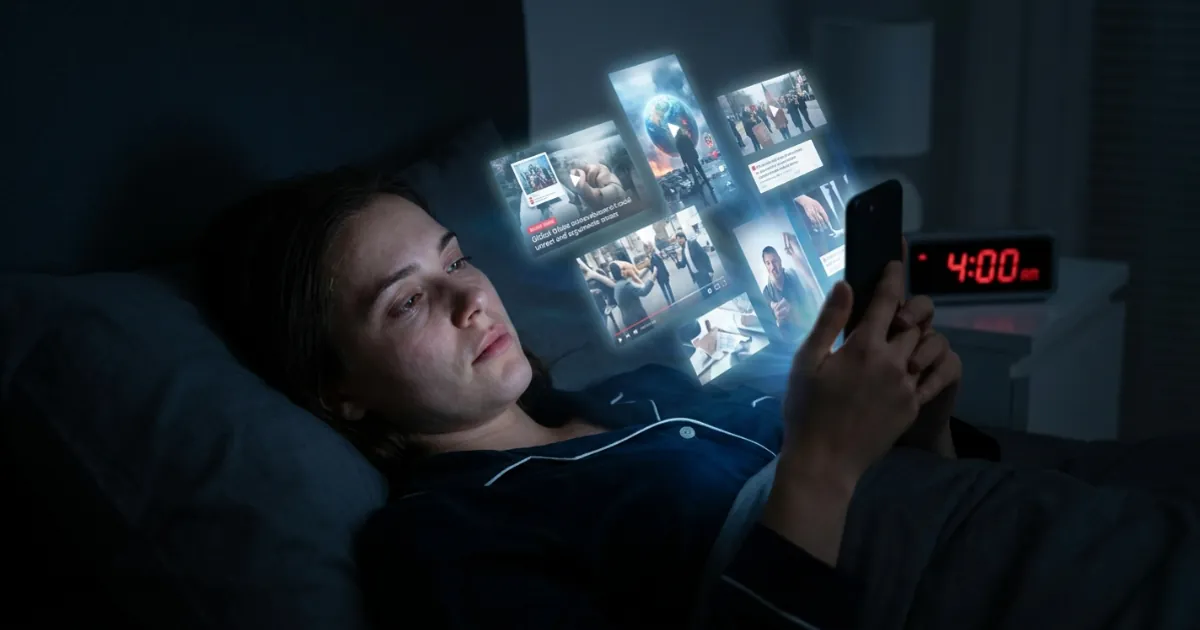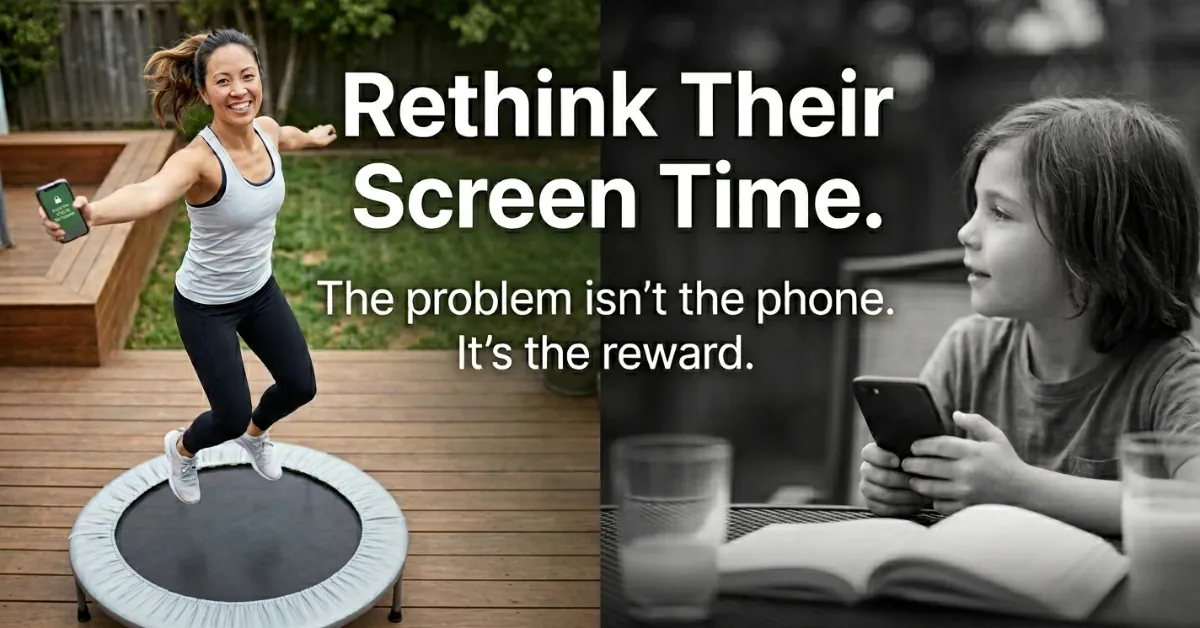
Traditional parental controls were built to block bad content — but doomscrolling is a design problem, not a content problem. Here are the locks, limits, and habit-replacement tactics that actually stop compulsive scrolling across every device in 2026.
Doomscrolling is a different beast than what most "parental controls" were built for.
Back in the day, parental controls meant blocking porn, blocking sketchy websites, stopping in-app purchases, maybe filtering YouTube a bit. Useful, sure. But doomscrolling is not really a content problem. It is a design problem.
Infinite feeds. Autoplay. Shorts that never end. "For You" pages that learn your kid's brain better than you do. And that means a kid can technically stay "safe" while still losing three hours on Reels, TikTok, Shorts, YouTube autoplay, Reddit feeds, whatever.
This article is about locks that reduce compulsive scrolling. Not just "protect from bad stuff". We are aiming for friction, hard limits, and consistency across devices.
A new generation of apps is tackling this at the habit level, not just the blocking level. Tools like ScrollToll require you to complete physical activity before your most-used apps unlock, so the solution is built into the routine rather than relying on willpower.
Why "Regular" Parental Controls Don’t Stop Doomscrolling Anymore
Most default parental controls still act like the problem is unsafe content.
But doomscrolling is more like your kid opens YouTube to watch one video for homework, then autoplay hits, then Shorts, then it is midnight. No explicit content involved. Nothing technically "blocked". Just time gone.
Same thing with TikTok or Instagram. Even if the content is age appropriate, the loop is the problem. The algorithm keeps pulling. Kids do not need to search for anything. The feed comes to them.
So if your parental control setup is mainly content filters, purchase approvals, and "time’s up" notifications, your kid can still stay in the app. Still watch. Still scroll. Still negotiate. Still press "one more minute" until your evening is toast.
What we are promising here is simpler: parental locks that actually stop the session. The app closes. The device locks. Extensions require a parent, not just a tap. And we set expectations properly. This is friction plus limits plus consistency. Not perfection.
What "Locks That Work" Look Like (The 5 Features That Matter)
If you take nothing else from this post, remember this: doomscrolling gets beat by hard edges. Here are the five features that matter.
- Hard app time limits (not just notifications). You want limits that trigger an actual lock and require parent approval to extend. A warning that says "5 minutes left" is not a limit. It is a countdown to bargaining.
- Downtime schedules that actually block. Bedtime and school hours should be non-negotiable, with a tight whitelist. Not "remind me in 15 minutes". Not "maybe later". Block.
- Anti-bypass design. Good locks make it hard to uninstall the control profile, change the device time, add new accounts, switch to web versions as a loophole, or use guest mode. You are not trying to outsmart your kid forever — just close the obvious doors so the rule is the rule.
- Cross-device coverage. Doomscrolling does not live on one phone. It lives on the phone, the iPad, the old Android in a drawer, the laptop browser, the smart TV YouTube app, and sometimes even a console. Your setup should reflect reality.
- Low-friction parenting. If the tool requires daily micromanagement, you will quit, or get inconsistent — and inconsistency is basically a bypass. You want simple approvals, clear weekly reports, and rules that run automatically.
Best Parental Locks on iPhone/iPad (Apple Screen Time)
Apple’s Screen Time feature can genuinely stop doomscrolling if you set it up correctly. The mistake most parents make is leaving loopholes open.
Set up Screen Time correctly: use Family Sharing so the parent controls the child’s settings, set a Screen Time passcode the child does not know, and turn on Share Across Devices so limits follow the Apple ID across iPhone and iPad.
Use App Limits + "Block at End of Limit". This is the core doomscrolling stopper on iOS. Set App Limits for TikTok, Instagram, YouTube, Snapchat, Reddit, X, and any browser you are not comfortable leaving open. Then enable Block at End of Limit. Without that, it is too easy to "ignore" limits.
Lock down changes. Go to Content and Privacy Restrictions and lock things down so your kid cannot simply change the rules. Set Account Changes to Don’t Allow, and Passcode Changes to Don’t Allow.
Stop the uninstall loophole. If your kid can delete apps, they can delete the app you are limiting, then reinstall. Go to iTunes and App Store Purchases, and set Deleting Apps to Don’t Allow.
Keep "Always Allowed" minimal. This is basically the escape hatch during downtime. Do not put YouTube, TikTok, Instagram, or Safari in there. Keep it boring and functional: calls, messages with close family, maps, a music app, a reading app.
iPhone/iPad Setup Checklist
- Screen Time is enabled for the child under Family
- Share Across Devices is ON
- Screen Time Passcode is set (unique, not the device PIN)
- Account Changes is set to Don’t Allow
- Passcode Changes is set to Don’t Allow
- Deleting Apps is set to Don’t Allow
- Always Allowed list does not include short-form video apps
Third-Party Parental Control Apps Worth Using in 2026
Built-in tools are decent. But if you have multiple device types, or a kid who is motivated to bypass, third-party tools are where you get consistency.
What to look for in 2026: tamper protection, per-app schedules, instant lock and quick pause, controls that actually work for YouTube and short-form, web filtering across browsers, and readable reporting.
- Qustodio. Best for families who want clear rules, schedules, and visibility across iOS, Android, and desktops. Cap social and video apps, enforce strict bedtime, pause during homework hours, and check weekly reports for patterns — spikes after 9 pm or long weekend loops — then adjust schedules.
- Bark. Best for parents focused on safety signals and balanced habits, not just blocking everything. You still use limits, but you also use alerts as conversation triggers around late-night use, escalating hours, or mood shifts. Be transparent: tell your kid what is monitored and why.
- Net Nanny. Best for kids who switch to browser versions like YouTube web, Reddit, or Instagram web. Block or limit specific sites during school hours, allow short windows later, and pair with OS app limits for the actual apps.
- OurPact. Best for parents who want schedules and instant "pause" without living in settings menus. Create a structured scroll window, then auto-block, and use one-tap lock when you see the spiral happening. Test on your exact device mix before committing.
- ScrollToll (exercise-first unlock). ScrollToll takes a different approach than every other tool on this list. Instead of just locking you out of your most-used apps, it requires you to complete physical exercise before those apps unlock. No workout, no Instagram. It works for both teens and adults who want to build healthier screen habits rather than fighting willpower every day. Best for households where the goal is habit replacement, not just restriction — and it pairs well with OS-level bedtime controls.
A Realistic "Anti-Doomscroll" Ruleset (Copy/Paste Framework)
You want a small number of rules that can be enforced automatically. A framework that works for a lot of families:
- School hours are for school
- Sleep is protected
- Entertainment is allowed, but inside windows
- Extensions require parent approval and are rare
Make it about outcomes: sleep, mood, homework done faster, mornings less awful. Not "because I said so". And plan exceptions. Travel, sickness, family movie night. Temporary overrides are fine when they are temporary.
Sample Configuration: School Day (Strongest Locks)
Allow during school hours: calls and texts with limited contacts, maps, school apps, and music if it helps focus. Block or set to near-zero: TikTok, Instagram, YouTube and Shorts, Reddit, X. After school, allow one short entertainment window — 30 to 45 minutes is a common starting point — with an auto-lock at the end of the window and no extensions.
Sample Configuration: Evenings (Protect Sleep)
Set a hard bedtime lock 60 to 90 minutes before sleep. The phone should charge outside the bedroom. Disable notifications for social and video apps, because notifications are basically fishing hooks. Whitelist at night: music, reading, and messaging with close family only.
Sample Configuration: Weekends (Flex Without Chaos)
Two planned entertainment blocks instead of all-day grazing. Keep a total cap to avoid the 6-hour Sunday scroll coma. Extra time can be earned, but avoid turning it into constant bargaining. Use weekly reports to adjust caps based on behavior, not based on parent guilt.
How Kids Bypass Parental Locks (And How to Close the Top Loopholes)
Kids are not evil. They are curious, social, bored, and the apps are engineered to keep them there. Bypassing is part of the game.
Common bypasses:
- Guessing passcodes
- Using web versions of blocked apps
- Old devices you forgot existed
- A friend’s hotspot
- Factory reset
- Switching accounts
- Incognito mode and alternative browsers
Countermeasures that do not require paranoia:
- Strong parent passcode, never shared
- Lock account changes on the device
- Supervised accounts on the device
- Router bedtime cutoff for Wi-Fi
- Periodic device audits, quick and calm
Do a simple device inventory once a month. Check every phone, tablet, and laptop, as well as smart TV apps and consoles with YouTube or browser access.
Make bypassing boring. Consistent consequences, predictable re-locking, and no courtroom debates at 10 pm. The more emotional energy it gets, the more it becomes a sport.
Make Parental Locks Stick: The Habit Layer
Tech limits without habit replacements can feel like punishment. And punished kids get sneaky. Pair limits with replacements: sports, hobbies that use hands, audiobooks, long-form content you can watch together, real social plans.
This is where apps like ScrollToll actually shine. Rather than just blocking scroll time, they build the replacement habit directly into the unlock mechanism. You want Instagram? Go for a walk first. The exercise is not a punishment. It is the new trigger. Over time, that becomes routine rather than a fight.
If your kid is deep into short-form, a full cold turkey ban can backfire. Sometimes a ramp-down works better: week 1 at 60 minutes, week 2 at 45 minutes, week 3 at 30 minutes, then reassess.
Use a simple family agreement: explain why the lock exists, involve the child in choosing the time windows, write it down, and keep it short.
And yeah, model it. If you are doomscrolling on the couch while telling them to stop doomscrolling, you have already lost credibility. Research from the American Academy of Pediatrics consistently shows that parental media habits are one of the strongest predictors of children’s screen time, so your own patterns matter as much as the tools you install.
What to Do When Nothing Works (High-Conflict or High-Addiction Patterns)
Sometimes it is beyond "set a limit and move on". Here are the red flags that mean you should escalate:
- Sleep collapse
- Hiding devices
- Big anxiety or irritability spikes
- Grades dropping fast
- Constant lying loops around screens
An escalation ladder that is still sane:
- Stricter downtime and a tighter Always Allowed whitelist
- Remove short-form apps for a set period (two weeks, a month), not forever
- Switch to a simpler phone for a while
- Supervised device-only zones in the home, no screens behind closed doors
When to involve professionals: if compulsive use patterns are harming sleep, school, or mental health, or if conflict is constant and escalating, start with a pediatrician or a therapist who understands digital habits. Frame it as support, not punishment.
Keep the goal in view. This is about regaining control of attention and time. Not "winning" a battle.
Wrap-Up: The Simplest Setup That Works for Most Families in 2026
A baseline stack that works for most families:
- Use OS-level controls (Apple Screen Time or Google Family Link)
- Set strict app limits on the two or three biggest doomscroll drivers
- Turn on Block at End of Limit (or the Android equivalent)
- Add bedtime downtime and keep a charging station outside bedrooms
- Prevent easy bypass by stopping installs and deletes, locking account changes, and keeping Always Allowed minimal
If you have multiple devices or a mixed-OS household, add one third-party tool for consistency and reporting. If late-night is the main issue, add a router bedtime cutoff for home Wi-Fi too. It will not solve everything, but it closes one more door.
If the goal is replacing the scroll habit rather than just fighting it, look at ScrollToll. It locks your most-used apps until you complete physical activity, which means the replacement behavior is built in rather than bolted on as an afterthought.
Practical next step, do it today: pick the top 2 apps driving doomscrolling on your kid’s device, set a daily limit, and make it a hard stop. No warnings-only setup — a real stop. Then protect sleep next. The rest gets easier once nights are calm again.
Try ScrollToll free: getscrolltoll.app
FAQs (Frequently Asked Questions)
What is doomscrolling and why aren’t traditional parental controls effective against it?
Doomscrolling refers to compulsive scrolling through infinite feeds like TikTok, YouTube Shorts, or Instagram Reels, often leading to excessive screen time without encountering unsafe content. Traditional parental controls mainly block inappropriate content or purchases but do not address the design problem of infinite feeds and autoplay features that keep kids engaged for hours.
What features should effective parental locks have to reduce doomscrolling?
Effective parental locks should include hard app time limits that lock the app after usage time ends, downtime schedules that non-negotiably block device use during bedtime or school hours, anti-bypass design preventing uninstalling controls or switching accounts, cross-device coverage spanning phones, tablets, laptops, and smart TVs, and low-friction parenting tools with simple approvals and automatic rules.
Why is anti-bypass design critical in parental controls?
Anti-bypass design closes obvious loopholes kids might exploit, such as uninstalling control profiles, changing device time settings, adding new accounts, switching to web versions of apps, or using guest modes. This ensures that once limits are set, they are enforced consistently without easy circumvention.
How do device OS controls compare with third-party apps and router-level locks?
Device OS controls like Apple Screen Time or Google Family Link are often sufficient for younger kids using one primary device. Third-party apps offer stronger reporting, tamper protection, cross-platform support, and web filtering. Router-level locks help by blocking internet access at certain times but struggle with encrypted traffic and in-app feeds. A layered approach combining these methods is most effective.
What makes ScrollToll different from other parental control apps?
Most parental control apps just block access to apps after a time limit is hit. ScrollToll requires you to complete physical exercise before your most-used apps unlock. This means the replacement behavior (movement) is built directly into the unlock mechanism, which makes habit change more sustainable than willpower-based limits alone. You can learn more at getscrolltoll.app.
What makes Apple’s Screen Time a good tool against doomscrolling on iPhone/iPad?
Apple’s Screen Time can effectively reduce doomscrolling if set up correctly by enforcing hard app limits that close apps after usage time expires, applying strict downtime schedules without "remind me later" options, and using parental approval for extensions. Avoiding loopholes and ensuring consistent enforcement helps make it a strong defense against compulsive scrolling.
How can parents ensure their digital management system is sustainable and effective over time?
Parents should aim for low-friction tools that require minimal daily micromanagement by enabling automatic rules, clear weekly reports, and simple approval processes. Consistency across devices and non-negotiable hard limits create friction that discourages doomscrolling without relying on constant supervision. Pairing limits with a habit-replacement app like ScrollToll also helps make the system feel less like punishment and more like a routine.
Ready to break the loop?
Download ScrollToll and start earning your screen time through real movement.